Your site loads in 6 seconds, your competitor's in 2. That gap rarely exists because their Yoast shows green dots everywhere. Usually they have a good foundation: a fast theme, good hosting and only the plugins they actually use. Only after that did they start optimizing. Speed counts toward your position in Google and toward what your site earns you.
Why the speed of your WordPress site matters for Google and your revenue
Research by Portent, which HubSpot writes about, shows that an online store that loads within one second converts 2.5 times as many visitors as a store that takes five seconds. Visitors expect a page to be open within a few seconds, and the longer they have to wait, the sooner they leave.
According to W3Techs, about 40 percent of all websites run on WordPress, and the platform itself isn't slow. It gets slow with a heavy theme, 30 plugins and images nobody has resized. The difference between a 2-second and a 6-second load time comes down to the choices you make, starting with the foundation.
The foundation: start with a fast WordPress theme
Before you think about caching or a CDN, pick a theme that is light. Making a heavy theme fast is like trying to make a Hummer fuel-efficient: you can tinker all you want, it stays a heavy car.
Fast WordPress themes: the top 3
GeneratePress is very light: the theme doesn't load jQuery and works well with Gutenberg, the default WordPress editor.
Astra is the most popular of the fast themes: WordPress.org lists more than a million active installations. It works with the well-known page builders, such as Gutenberg, Elementor and Beaver Builder.
Kadence gives you more to build with, such as a drag-and-drop header builder and a library of ready-made templates, and still stays light. In terms of speed it sits in the same range as Astra.
Heavy themes and page builders
Page builders that come with their own theme put a thick layer of extra CSS and JavaScript on your site. Elementor loads extra code for each element, but with few widgets, the performance settings turned on and fonts hosted on your own server, an Elementor site can be fast too. It's possible with optimization, it just takes more work.
Avada, Divi and similar all-in-one themes offer a lot of design options, and that makes them heavy. Without optimization, even an empty page loads slowly, and with the builder on top, the gap with a light theme like GeneratePress gets big.
Test the speed of your theme before you choose
Install the theme in a staging environment (a test copy of your site), build a page with it and test that in PageSpeed Insights. If the theme scores under 70 on mobile, you'll spend the rest of your time optimizing with the parking brake on. Also look at how many HTTP requests an empty page makes: more than 25 is too many.
WordPress hosting: which server your site needs
Aim for a server response time under 200 milliseconds. Cheap shared hosting at €3 a month is fine for a blog with 100 visitors a day. If you have an online store with 5,000 visitors and €15,000 in revenue a month, invest €25 to €40 a month in better hosting.
When choosing a host, look for PHP 8.3 or higher (versions below 8.2 are outdated and slower), SSD storage and, if possible, a LiteSpeed server. If you get more than 10,000 visitors a month, choose a VPS, a virtual server of your own, instead of shared hosting.
To check your current hosting, measure the TTFB (Time To First Byte, the time until the server sends the first data) in PageSpeed Insights. If it's above 600 milliseconds, your server is the problem. With shared hosting you share the server with dozens of other sites, so when they get heavy traffic, you feel it too.
WordPress plugins: keep only what you use
Heavy plugins in particular slow your site down, and one badly built plugin can do more damage than twenty good ones. With Query Monitor you can see which plugins are slow: how many database queries they run, how long they take to compute and how many HTTP requests they make.
Then look at which plugins you really need. Social media share buttons on every page that nobody uses can go, and so can the scripts of a contact form that load on a homepage without a form. With Asset CleanUp you turn off scripts per page, so every page loads only what it uses.
Deactivate unused plugins and then delete them completely, because some leave data behind in the database. WP-Optimize cleans up that leftover data.
Only then optimize WordPress, starting with images
Now that the foundation is in place, you start optimizing, and images are usually the heaviest part of a page. A 5 MB photo that appears as a 400-pixel-wide thumbnail on the page loads far more than it needs to.
Compress photos before you upload them, with TinyPNG or Squoosh, and convert them to WebP. According to Google, WebP files are 25 to 34 percent smaller than JPEGs of comparable quality. ShortPixel and Smush do this automatically; the free version of ShortPixel also converts to WebP, Smush's doesn't.
Lazy loading loads images only when they come into view. That helps on long pages, but don't turn it on for the large image at the top, or a visitor first sees an empty space. Write alt text that describes what's in the photo, without stuffing keywords into it.
Caching: keeping ready-made pages on hand
Without caching, WordPress rebuilds every page on every visit. With caching, the server keeps a ready-made HTML version and serves it right away.
LiteSpeed Cache: free and very fast, but it only works on hosting with a LiteSpeed server. Hostinger and many other hosts use one. The caching happens on the server itself, without PHP being involved.
WP Rocket: paid, around €50 a year for one site according to its own pricing page, and it works right away on any hosting. It takes care of page caching, minification and lazy loading for you. User-friendly, though not always the fastest.
WP Fastest Cache: free and easy to set up. It has fewer features, and therefore also less that can break.
A mistake beginners often make: installing three caching plugins at the same time. Pick one and test after setup that everything still works.
Database: cleaning up what piles up
WordPress stores everything in a database, and after a few years it holds thousands of old post revisions, spam comments and temporary data (transients) from plugins that are long gone. That makes queries slower and your pages load more slowly.
WP-Optimize removes those old revisions, spam comments, expired transients and orphaned metadata, and can do it automatically every week. Also look at the autoloaded data, the data WordPress loads on every page: under 800 KB is good, above 2 MB is a problem.
Limit the number of revisions with the line define('WP_POST_REVISIONS', 3); in wp-config.php. WordPress then keeps only the last three versions of each post.
Google PageSpeed and Core Web Vitals for WordPress
PageSpeed Insights measures your site on mobile and on desktop. The score from 0 to 100 comes from a lab test. Below it are the Core Web Vitals: three metrics Google uses to judge the experience of real visitors, and they count toward your position.
LCP (Largest Contentful Paint), under 2.5 seconds: measures how long it takes before the largest element is visible, usually the big image at the top. Heavy images, a slow server and CSS or JavaScript that blocks loading all slow this down.
INP (Interaction to Next Paint), under 200ms: measures how fast the page responds when you click something. Since 2024, INP has replaced the old FID metric. WordPress sites often score poorly on INP because of plugin JavaScript.
CLS (Cumulative Layout Shift), under 0.1: measures whether elements shift while loading. That happens with images that have no width and height attributes, for example, or with ads that suddenly appear.
What a score of 100/100 is worth
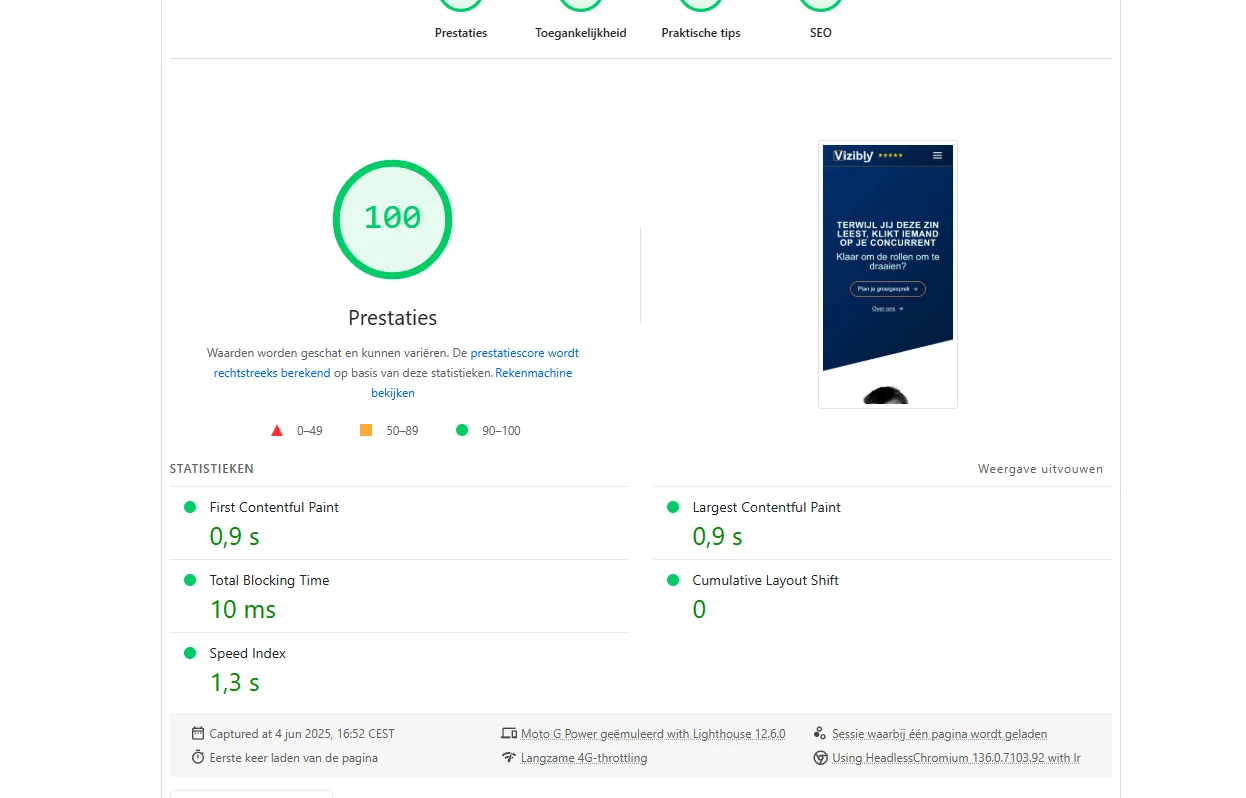
A perfect PageSpeed score feels like the goal, and Vizibly itself scores 100/100 on mobile and desktop. Still, what matters most is whether a site brings in clients. A site with 85/100 that has made all the important improvements often does better than a bare-bones site with 100/100.
So focus mostly on the recommendations PageSpeed Insights gives below the score. Remove CSS and JavaScript that block loading, make your LCP faster and load less JavaScript.
CDN and minification: the last bit of speed
A CDN (Content Delivery Network) keeps copies of your static files, such as images and scripts, on servers around the world. If your site mainly has Dutch visitors, that doesn't gain you much. With an international audience it does cut load time, and Cloudflare has a free version.
Minification removes unnecessary spaces and line breaks from your code. Autoptimize does that automatically, but test your site after turning it on, because some scripts break. GZIP compression makes files smaller before the server sends them, and hosting providers often already take care of that for you.
Monitoring: keep measuring your speed
For a single measurement use PageSpeed Insights, and for a detailed analysis GTmetrix. The Core Web Vitals report in Search Console shows what real visitors experience. Measure every month, because without maintenance a site slowly gets slower. Want to know where you stand right now? Test the speed of your website with the free speed test.
Test on a real phone and not just in Chrome DevTools, because most visitors don't have an expensive top-end model. Start with mobile too: since 2019, Google looks at the mobile version of a site first (mobile-first indexing).
Common mistakes in WordPress speed optimization
If you change the permalink structure afterward without 301 redirects, you make all the old URLs unreachable in one go. Other common mistakes: uploading images without compressing them, never cleaning up the database and leaving error messages in Search Console unresolved. And then there's sticking with cheap hosting “because it works”: €4 a month is enough for a blog, but not for an online store with €15,000 in revenue.
Check where your WordPress site can get faster
A slow site rarely has a single cause. Often the server responds slowly, the images are too big, the theme is heavy and plugins load scripts nobody uses. With every extra second a page takes to load, visitors drop off.
Speed is only one part of a site that gets found, though. You also want to know what visitors do on your pages, and you read that from their user behavior. And your content has to hang together, for example through content clusters around your most important topics.
What else you can do for WordPress SEO besides speed, you can read in the article about the green Yoast checkmarks.
Feel free to call me at +31 6 282 064 10. In 15 minutes I'll go through your theme, hosting and plugins with you, and then you'll see where the biggest slowdown is.
Or see what full-service SEO means for your WordPress site.
A speed analysis of your WordPress site
An analysis of your WordPress site shows which parts slow it down and what to tackle first.
Call: +31 6 282 064 10. Or schedule a call.
SCHEDULE A CALL