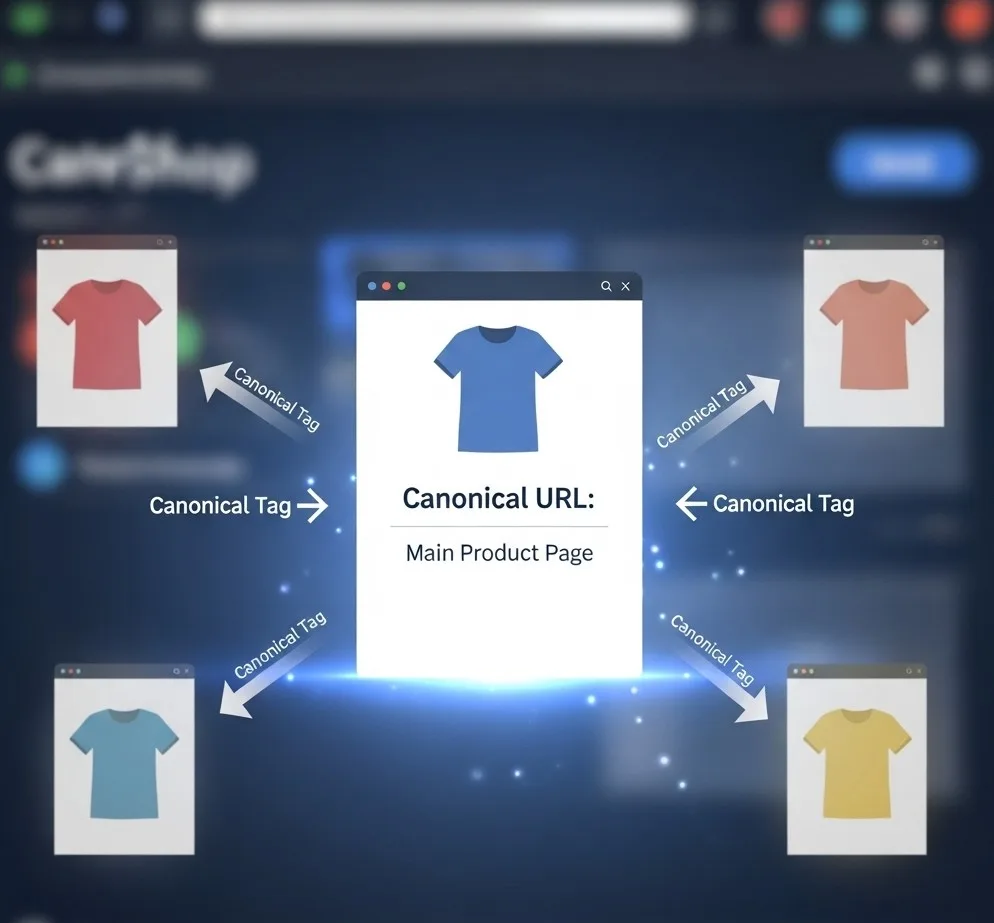
If you sell a product in multiple colors, sizes or versions, each variant gets its own page in many online stores. The text on those pages is nearly identical, and Google sees that as duplicate content. With canonical tags you indicate which page is the main version, so your product variants don't compete with each other in the search results.
What are canonical tags?
A canonical tag is a line of HTML in the head of your page. It tells search engines which version of a page is the main version, so that Google indexes that one URL and brings together the signals from the other versions, such as links. It remains a hint, though: in a few cases Google may deviate from it.
The problem with product variants
Say you sell a basic T-shirt in three colors. Many store platforms turn that into three separate URLs:
/t-shirt-basic-red/t-shirt-basic-blue/t-shirt-basic-green
To Google, those are three pages with almost the same content. Only the color differs; the description, specifications and price are the same. With duplicate content like this, Google decides for itself which of the three to show in the search results, and that isn't always the page you want. Links from other sites also end up divided over three URLs instead of one.
One main page, and a canonical tag on every variant
You pick one main product page and put a canonical tag on every variant that points to that page. The main page itself gets a canonical pointing to its own URL:
Main product page (/t-shirt-basic):
<link rel="canonical" href="https://yourstore.com/t-shirt-basic">Every variant (red, blue and green) has the same line:
<link rel="canonical" href="https://yourstore.com/t-shirt-basic">Three ways to set up variants
1. One main page with a selector (recommended)
You create one product page without a fixed variant, and the visitor picks the color or size with a dropdown or buttons on that page. If separate variant URLs exist anyway, they all get a canonical tag pointing to this main page.
Pros:
- Easy to set up
- Links and other signals come together on one page
- The visitor switches color or size without going to another page
2. The variant as a parameter in the URL
The variant then doesn't get its own page, but sits as a parameter after the product URL:
- Main page:
/t-shirt-basic - Variants:
/t-shirt-basic?color=red
The canonical always points to the main page without parameters.
3. Self-referencing canonicals per variant
Every variant gets a canonical that points to itself, so Google may index all variants separately. Choose this only if a variant truly has its own content and people search for it separately, for example a version with its own name and its own specifications.
Setting up canonical tags in your online store
Shopify, WooCommerce and Magento can put canonical tags on product pages, by default or through a setting or SEO plugin. Look at what your platform already does before you add anything yourself, or you'll end up with two canonicals on one page. If your store uses a custom variant system or an unusual setup, professional SEO support helps you set it up properly.
Building it yourself (example in PHP):
if ($is_product_variant) {
    $canonical_url = get_main_product_url($product_id);
} else {
    $canonical_url = get_current_page_url();
}
echo '<link rel="canonical" href="' . $canonical_url . '">';
What canonical tags do for you
- 1. One clear version: Google knows which page you want to show, instead of choosing for itself between variants with duplicate content
- 2. Combined links: a link to /t-shirt-basic-red counts toward the main page
- 3. Less crawl time on copies: Google spends less time on pages that are almost the same
- 4. Numbers in one place: clicks and impressions in Search Console come together on the main page, not spread over variants
Common mistakes
- No canonical tag on the variant pages
- A wrong URL in the canonical, such as http instead of https or a typo
- Canonical chains, where A points to B and B points on to C
- A canonical to a 404 page, for example after the main product has been taken offline
How to check your canonical tags
You can see whether your canonical tags are right in three places:
In your browser's developer tools
- Open a variant page and press F12 (Chrome, Firefox and Edge; in Safari, first turn on the develop menu and press Cmd+Option+I)
- Open the “Elements” or “Inspector” tab
- Press Ctrl+F (or Cmd+F on a Mac) and search for “canonical”
- Check whether the URL in that line points to your main page
In Google Search Console
- Go to search.google.com/search-console
- Paste the URL of a variant into the URL Inspection tool
- Compare the canonical you declared (“User-declared canonical”) with the canonical Google chose (“Google-selected canonical”)
Important: if those two differ, Google isn't following your canonical. Then look in the Page indexing report at the reasons why pages aren't indexed. If many URLs sit under “Duplicate, Google chose different canonical than user” or “Duplicate without user-selected canonical,” your canonical setup still isn't right.
With a crawler or extension
- Screaming Frog SEO Spider (free up to 500 URLs)
- Browser extensions such as “SEO Meta in 1 Click”
If your online store sells products in multiple variants, pick one main page per product and have the variants point to it with a canonical tag. Then check in Search Console whether Google adopts that choice.
Help with the SEO of your online store
I help online stores with technical SEO, and canonical tags on product variants are simply part of that. I look at which variant pages Google currently indexes and set up the canonicals so that every product has one clear main page.
Call +31 6 282 064 10 or schedule a call right away.
SCHEDULE A CALL